In our purchase order module, we need to ask certain questions depending on the source selection method, competition type and total cost of the PO. These questions are likely to change over time and in between different instances of the database. So I have a view containing the questions, so that I can add questions dynamically to my XPage without needing to change the code.
To be honest, doing this in a regular Notes form would have required either putting every question on the form or putting a bunch of fields on the form for all the answer fields. Either method would be sloppy and wasteful. There could have been dozens of unnecessary answer fields hidden by hide-whens and constant revisions between various instances of the database leading to a configuration management/version control nightmare.
Doing it in a repeat control, with the source view filtered by values passed in an array, I can get dynamically selected questions with only the necessary fields being stored on the document.
In order to do this, I had to use all of my minimal XPages knowledge, ask several questions on Stack Overflow, re-read portions of Mastering Xpages and scour the help documentation. You, however, can simply follow my guidance and have this solution for your own.
The Question Form
I created a relatively simple Notes form, based on the ones supplied to us for keywords by Teamwork Solutions. The layout is clean and very readable, plus re-using it allows more consistency within our application. A number of the fields are used to determine when and where the question will display (Category, Competition type, Source selection method and Dollar ranges). The checkbox values are derived from keyword documents, to allow maximum flexibility. I’m allowing five field types for answers: Yes/No, Dialog Box, Text Box, Date and Date Range. I had tried Rich Text, but was having problems with losing the handle to the document when saving, and since it wasn’t really required in this implementation, dropped that for later review. Sometimes, the question has a related question to extract more details, so I allowed two questions to be placed on one question document to ensure they display together. Down at the bottom, I’ve got the fields to which the answer fields will be bound on the Notes document. One hazard to allowing the field to be named in this configuration document is that there might be duplicate use of a field name, by the risk level strikes me as low.
Setting up the Repeat
The way that I started to understand repeats was actually when I set up jQuery mobile access to some data after viewing Richard Sharpe’s webinar for TLCC on Building Your First Mobile Application Using XPages I was able to take the knowledge I acquired doing that and use it to link from one Requisition to many Purchase Orders as demonstrated on this blog.
The repeat itself is not that interesting, but, one of the technical tricks in the setup is. As I’ve started to learn XPages, I’ve gotten comfortable with variables stored in applicationScope (available to everyone), sessionScope (available throughout the current user’s session) and viewScope (available on the current page), but had no idea when one would ever use requestScope variables. It turns out that they can be very useful to us here, though we’re going to access them using a dataContext rather than labelling them as requestScope variables.
Since I want to take a value from each Question document to determine the field to bind to on the Purchase Order document, the syntax and re-use will be far easier if I can establish a variable for that field name used within each row of the repeat. This way, we can use Expression Language to refer to the field on the Purchase Order document, binding to it dynamically.
<xp:repeat id="repeat2" rows="30" var="rowData" style="width:700px" value="#{competitionQuestionView}">
    <xp:panel>
        <xp:this.dataContexts>
            <xp:dataContext var="fieldName">
                <xp:this.value><![CDATA[#{javascript:rowData.getColumnValue ("FieldName");}]]></xp:this.value>
            </xp:dataContext>
        </xp:this.dataContexts>
        <--- insert code here --->
    </xp:panel>
</xp:repeat>
First, we want to display our question, with the layout handled by a table. We just grab the column value and display it.
<xp:table>
    <xp:tr>
       <xp:td style="width:200.0px;">
          <xp:label id="label1">
             <xp:this.value><![CDATA[#{javascript:rowData.getColumnValue("Question");}]]></xp:this.value>
          </xp:label>
       </xp:td>
Then, in the right-hand cell, we have the various possible answer fields. Note that since only one is rendered (the rendering formulas being mutually exclusive), it doesn’t matter that we bind to the field multiple times, since only one binding actually appears on the page. Tim Tripcony guided me to this solution in his answer on Stack Overflow. By using array syntax, we bind to the field on the poDoc using the value of our requestScope variable, fieldName. Remember, as a requestScope variable, it is only “alive” for the duration of this data retrieval to create the field binding. The binding formula ends up being very simple: #{poDoc[fieldName]}
Here’s a portion of the answer fields to give you the flavor…
<xp:td>
   <xp:inputText id="inputText1" style="padding-top:2px;width:400px">
      <xp:this.rendered><![CDATA[#{javascript:rowData.getColumnValue("FieldType") == "Text Box"; }]]></xp:this.rendered>
      <xp:this.value><![CDATA[#{poDoc[fieldName]}]]></xp:this.value>
   </xp:inputText>
   <xp:comboBox id="comboBox1" style="padding-top:2px;">
      <xp:this.rendered><![CDATA[#{javascript:rowData.getColumnValue("FieldType") == "Dialog Box"; }]]></xp:this.rendered>
      <xp:selectItems>
         <xp:this.value><![CDATA[#{javascript:rowData.getColumnValue("DialogChoices")}]]></xp:this.value>
      </xp:selectItems>
      <xp:this.value><![CDATA[#{poDoc[fieldName]}]]></xp:this.value>
   </xp:comboBox>
   <xp:inputText id="inputText2" style="padding-top:2px;text-align:left">
      <xp:this.rendered><![CDATA[#{javascript:rowData.getColumnValue("FieldType") == "Date"; }]]></xp:this.rendered>
      <xp:dateTimeHelper id="dateTimeHelper1"></xp:dateTimeHelper>
      <xp:this.converter>
         <xp:convertDateTime type="date"></xp:convertDateTime>
      </xp:this.converter>
      <xp:this.value><![CDATA[#{poDoc[fieldName]}]]></xp:this.value>
   </xp:inputText>
   <xp:radioGroup id="radioGroup1" style="padding-top:2px;width:86.0px">
      <xp:this.rendered><![CDATA[#{javascript:rowData.getColumnValue("FieldType") == "Yes/No"; }]]></xp:this.rendered>
      <xp:selectItem itemLabel="Yes" itemValue="Yes"></xp:selectItem>
      <xp:selectItem itemLabel="No" itemValue="No"></xp:selectItem>
      <xp:this.value><![CDATA[#{poDoc[fieldName]}]]></xp:this.value>
   </xp:radioGroup>
</xp:td>
Since my Question document also allows for the addition of a comment question after the non-TextBox answers, I have another line on the XPage to display those (Note that the dataContext for the commentFieldName requestScope variable has to be added to that panel inside the repeat control as well).
<xp:tr id="commentRow">
   <xp:this.rendered><![CDATA[#{javascript:rowData.getColumnValue("DisplayComment") == "Yes"; }]]></xp:this.rendered>
   <xp:td style="border-bottom:grey solid 0px;padding-top:2px;">
      <xp:label id="label3">
         <xp:this.value><![CDATA[#{javascript:rowData.getColumnValue("CommentLabel");}]]></xp:this.value>
      </xp:label>
   </xp:td>
   <xp:td id="commentCell" style="border-bottom:grey solid 0px;padding-top:2px;">
      <xp:inputText id="inputText3">
         <xp:this.value><![CDATA[#{poDoc[commentFieldName]}]]></xp:this.value>
      </xp:inputText>
   </xp:td>
</xp:tr>
In my next blog post, we’ll look at how we filtered the view data source in order to only display the questions we want on a particular purchase order.
If you don’t already look at XPages questions on Stack Overflow, you really ought to, and if you haven’t been keeping up with TLCC’s webinars, check out the series.
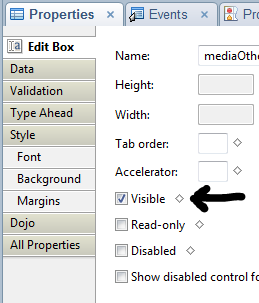 My first attempts, as I am sure everyone’s were, was to think of the ‘visible’ property on the properties of a control as the same thing as a hide-when formula in standard Notes. It’s not. This become more obvious when you see that in source. In source, when you deselect “Visible”, your control gets a property of rendered=false. So, in XPages, if your formula (or simple checkbox) calculates to false, the item is not even rendered. That is, it’s not part of the page, so if values change it doesn’t matter. The formula is not on the rendered XPage to be recomputed. As an old-school standard Notes developer you would expect it to be hidden, but computed and displayed when values change.
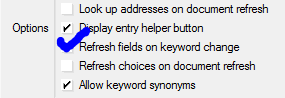 controlled the hide-when forced refreshes when it changed, you also need to do the same thing in XPages. However, the good thing about XPages is that you can do it via a partial refresh, refreshing only the control you want. Fewer round-trips to the server for less data makes for a far more responsive application.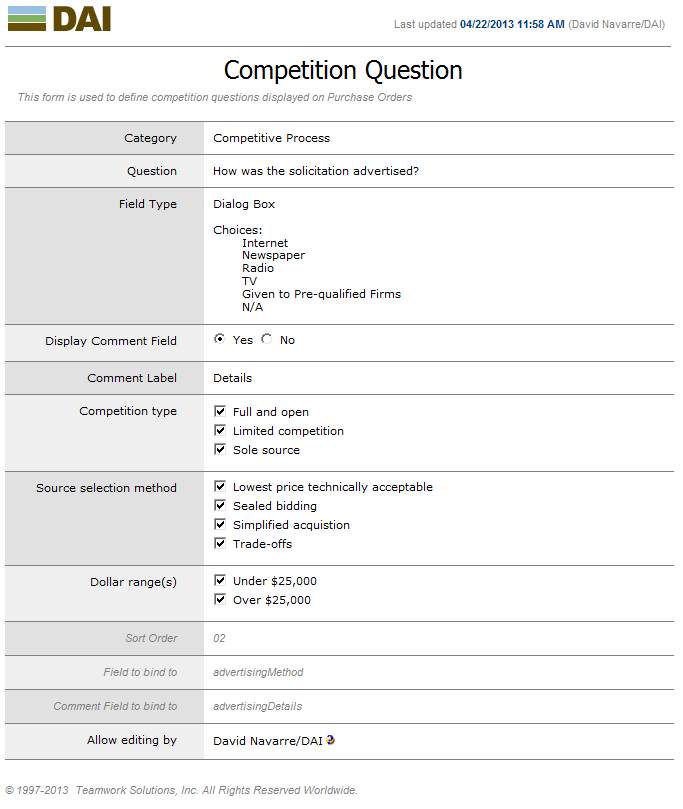
 Lost in Code