Server-Side Javascript

Exporting from #XPages to Excel without Excel, Part 1

As much as I’d love my users to simply access their data in my Notes databases, I know they’re going to need to export it. Mostly, they want to be able to manipulate it to analyze it, but they also want to create static reports and to send those reports to external parties that we don’t want accessing our data live. In old Notes, I could force train people to use the export functions of Notes, or with the advent of Copy As Table, scream at teach them to cut-and-paste. Back when I was at a government agency, helping them email their order via spreadsheet from an outside vendor in a semi-automated process, it required the user to have Excel on their machine (initially, only specific versions of Excel, but I learned to get beyond that). Fortunately, Russ Maher taught me that you don’t have to do it that way in his talk Extending Your XPages Applications with Java at AdminDev 2012.

My favorite part of his talk, since I’d done the aforementioned Notes-to-Excel export, was when he talked about creating Excel files even if the user didn’t have Excel. Apache POI is a Java API for Microsoft documents (download page for the JAR files) and by loading the JAR file into your Notes databases, you can use all of the functionality in your XPages applications. Thus, I can use my Motorola XOOM tablet to access the project database, select the inventory report, generate the Excel file and download it directly to my tablet without having Excel on the tablet. I showed the result to office mate and he came up with the inventory idea — no need to print out the inventory and you can make notes on your tablet as you walk around. Heck, I’m sure I could also write something that would process changes back into the database there as well, but that remains for a future date.

Architectural Information

Before we plunge into the code, let me first explain the architecture and use case involved here. Each of our projects around the world uses one of our applications, which we call TAMIS. In the past, this meant one Notes database for each project,  with perhaps 70 projects active at a time. Each database would start with the same design and then be customized for the project. This has usually meant design changes rather than just configuration, but both methods are used. So, there will be some configuration that is done by local staff and some by the development team. Configuration of these Excel reports is something that has always been done by the development team.

In the XPages version our application, there are actually four databases: Shared Resources, Main, Attachments and Workflow. The design work was done by Scott Good’s folks at Teamwork Solutions, so it bears many marks of their Process It! workflow engine. Shared Resources contains all the XPage design elements, configuration documents and some general information. Main is where the data goes. Attachments is obvious, but Workflow not as much – it contains both the workflow configuration and the workflow tracking documents.

Given all of that, we will have our code in Shared Resources and our data over in Main. Thus, we want to launch from one database, grab data from another and return it all to the user as a seamless download that pops into his machine just by clicking one button on our XPage.

So, how do we do this?

POI JarAdd JAR to database

Well, first thing to do is to put the JAR file into your Notes database. I’m still on 8.5.3, so I have to put it in \WEB-INF\lib, while you can bring it in directly as a design element in Notes 9. As you can see in the image here, I’m using version 3.6 of the JAR file, despite the fact that 3.9 is the current release, but I don’t really mind being behind the times a little bit, as long as it works. It looks like 3.7 and 3.8 added some fixes for handling dates and numbers better, so I will probably upgrade after our next pilot rolls out. We have seen occasional issues with dates, being a very international company.

ReportKeywordCreate the Configuration Form

The was arguably my favorite part of the process. Well, until it actually started spitting out spreadsheets. Why did I enjoy it so much? Is it because it’s ‘old Notes’? I don’t think so. While the form did build off the keyword documents that my old development mentors (Elvis Lezcano and John Mirza) created back in the 1990s when we were all at Exxon-Mobil, the neat part was utilizing some of the knowledge I’d gained about navigating design elements in simple, front-end LotusScript. Basically, the user selects the view (via name or alias) and then can choose the columns right from the view design rather than requiring any pre-configuration by me. While I do need to work on the configuration form to add more choices about sorting and styling, I got pretty happy with the results.

The configuration form supplies the view name, the column headers and numbers, and identifies which columns to total. This gets used by the Export Stream Library when the user initiates the export.

Create your Export XPage

This was the simplest design element, though also, since I’m still so new to XPages, the most challenging. With the configuration document, I was working with LotusScript, so the new wrinkles were just fun extensions of my knowledge. The Export Stream Library was initially just something I took wholesale from Russ’ presentation. While I did start with Russ’ XPage, I ended up, because of the configuration document and the UI things I wanted to do, making myself jump through a few hurdles. Worse yet, when I went to move it from it’s original implementation, I stumbled several times on the fact that the button was…. disabled. Nothing like clicking and checking your code 10 different ways and then examining it using ‘Inspect Element’ to realize the problem is that the disabled attribute simply computes as true every time.

Our Export Xpage allows the user to select from all of the report configurations we’ve created and provide both the filename (to which it will append .xls) and the name for the worksheet. I’m sure that it wouldn’t take much additional work to export multiple worksheets into a single file for a more complex and useful product, but we’re starting pretty simple.

<?xml version="1.0" encoding="UTF-8"?>
<xp:view xmlns:xp="http://www.ibm.com/xsp/core"
	xmlns:xp_1="http://www.ibm.com/xsp/coreex">
	<xp:this.resources>
		<xp:script src="/CreateExcelWorkbookStream.jss" clientSide="false">
		</xp:script>
	</xp:this.resources>
	<xp:label id="label1" value="Create Reports"></xp:label>
	<xp:br></xp:br>
	<xp:br></xp:br>
	<xp:table>
		<xp:tr>
			<xp:td>
				<xp:label value="Choose Report:" id="label2"></xp:label>
			</xp:td>
			<xp:td>
				<xp:comboBox id="comboBox1">
					<xp:selectItems id="selectItems1">
						<xp:this.value><![CDATA[#{javascript:var noval = [];
						noval[0] = "Please select a report";
						var forms = @DbColumn(@DbName(),"ExcelReports",1);
						var vals = noval.concat(forms);
						return vals;}]]></xp:this.value>
					</xp:selectItems>
					<xp:eventHandler event="onchange" submit="true"
						refreshMode="complete" refreshId="wbName" id="eventHandler1">
						<xp:this.script><![CDATA[var x= '#{javascript:getClientId("comboBox1")}'; var z= '#{javascript:getClientId("wbName")}'; var tmp = document.getElementById(x).value; document.getElementById(z).value=tmp.replace(/ /g,"_"); ]]></xp:this.script>
					</xp:eventHandler>
				</xp:comboBox>
			</xp:td>
		</xp:tr>
		<xp:tr>
			<xp:td>
				<xp:label value="File Name:" id="label4" for="wbName">
				</xp:label>
			</xp:td>
			<xp:td>
				<xp:inputText id="wbName"
					disableClientSideValidation="true" required="true"
					defaultValue="Sample">
					<xp:this.validators>
						<xp:validateRequired>
							<xp:this.message><![CDATA[#{javascript:return getLabelFor(this).getValue() + " is a required field.";}]]></xp:this.message>
						</xp:validateRequired>
					</xp:this.validators>
				</xp:inputText>
			</xp:td>
		</xp:tr>
		<xp:tr>
			<xp:td>
				<xp:label value="Sheet Name:" id="label5"
					for="sheetName">
				</xp:label>
			</xp:td>
			<xp:td>
				<xp:inputText id="sheetName"
					disableClientSideValidation="true" required="true"
					defaultValue="Report">
					<xp:this.validators>
						<xp:validateRequired>
							<xp:this.message><![CDATA[#{javascript:return getLabelFor(this).getValue() + " is a required field.";}]]></xp:this.message>
						</xp:validateRequired>
					</xp:this.validators>
				</xp:inputText>
			</xp:td>
		</xp:tr>
		<xp:tr>
			<xp:td>

			</xp:td>
			<xp:td>
				<xp:messages id="messages1"></xp:messages>
			</xp:td>
		</xp:tr>
	</xp:table>
	<xp:br></xp:br>
	<xp:br></xp:br>
	<xp:button value="Create Report" id="button1">
		<xp:this.disabled><![CDATA[#{javascript:getComponent("comboBox1").getValue() == "Please select a report";}]]></xp:this.disabled>
		<xp:eventHandler event="onclick" submit="true"
			refreshMode="complete">
			<xp:this.action><![CDATA[#{javascript:
function postValidationError(control, msg) {
    if ((typeof msg) != "string")
            return;
    var msgObj = new javax.faces.application.FacesMessage(javax.faces.application.FacesMessage.SEVERITY_ERROR, msg, msg);
    facesContext.addMessage(control.getClientId(facesContext), msgObj);
    control.setValid(false);
}
var control = getComponent("comboBox1");

var wbName = getComponent("wbName").getValue();
var sheetName = getComponent("sheetName").getValue();
var formName = getComponent("comboBox1").getValue();
var fpapp:NotesDatabase = session.getDatabase(@DbName()[0],@DbName()[1]);
var lkey:java.util.Vector = new java.util.Vector;
lkey.addElement(formName);
var lview = fpapp.getView("ExcelReports");
var doc:NotesDocument = lview.getDocumentByKey(lkey,true);
if ( !@IsNull (doc) ) {
	var viewName = doc.getItemValue("ViewName");
	postValidationError(control,"ViewName: " + viewName);
	var columns = doc.getItemValue("columnNumbers");
	postValidationError(control,"columnNumbers: " + columns);
	var colFields = [];
	for(var i=0;i<=columns.length-1;i++){
		colFields.push(columns[i]);
	}
	labelList = doc.getItemValue("Value");
	var labels = [];
	for(var i=0;i<=labelList.length-1;i++){
		labels.push(labelList[i]);
	}
	var columnsWithTotals = doc.getItemValue("ColumnsWithTotals");
	var totalLabels = [];
	for(var i=0;i<=columnsWithTotals.length-1;i++){
		totalLabels.push(columnsWithTotals[i]);
	}
	createWorkbookStreamWithLabels(wbName,sheetName,colFields,viewName[0],labels,totalLabels);
}
}]]></xp:this.action>
		</xp:eventHandler>
	</xp:button>
	<xp:br></xp:br>
</xp:view>

Create your Export Stream Library

Due to the length of this post, the library is in a second post. I’ve also added a sample database.
Categories: Java, Server-Side Javascript, Xpages | Tags: , , , , , | 7 Comments

Filtering source views for use in #xpages

In our continuing example of purchase orders, we move from our examination of dynamic field binding in repeats to the filter used on the source view to select the competition questions we want to appear in that repeat control.

Depending on the type of competition, the source selection method and the dollar amount of the purchase order, there are different questions that the person preparing the purchase order needs to answer about the competition. There are several categories of competition questions, but the layout for the questions and answers remains the same, so I created a custom control that is used by all categories and the custom control appears on the XPage multiple times.

Each time, I pass the category as one of the properties of the custom control, as well as the criteria (type, method and amount). My view is set up with four sorted columns to filter my competition questions, so with the help of Per Henrik Lausten on StackOverflow, I learned that all I have to do is create an array to be used as the key, just as I would in LotusScript for a GetAllDocumentsByKey.

On our Purchase Order XPage, the syntax for one of the custom control insertions would appear as follows:

<xc:pro_competitionQuestions_cc
		sectionTitle="Competitive Process" competitionType="#{javascript:competitionType}"
		sourceSelectionMethod="#{javascript:sourceSelectionMethod}"
		dollarRange="#{javascript:dollarRange}">
</xc:pro_competitionQuestions_cc>

When referring to the custom properties of a custom control within that control, you use compositeData followed by the property name. It makes it rather easy to pass parameters to the control.

In Java, arrays are handled by using a Vector. Simply create the Vector, then addElement to add each of my four filters (category, type, method and amount). When this is assigned to the Keys element of a dominoView used as a source, it filters the documents returned to provide only those that match our filter criteria. Here’s our filter in action:

<xp:this.data>
    <xp:dominoView var="competitionQuestionView"
     viewName="CompetitionQuestions" keysExactMatch="true"
     sortOrder="ascending"
     sortColumn="QuestionSortOrder">
       <xp:this.keys><![CDATA[#{javascript:var vArray = new java.util.Vector();
        vArray.add(compositeData.sectionTitle);
        vArray.add(compositeData.competitionType);
        vArray.add(compositeData.sourceSelectionMethod);
        vArray.add(compositeData.dollarRange);

        return vArray;
        }]]></xp:this.keys>
    </xp:dominoView>
</xp:this.data>

*Updated to us vArray.add instead of vArray.addElement on Jesse Gallagher’s advice. Thanks, Jesse!

Categories: Server-Side Javascript, Xpages | Tags: , , , , | 3 Comments

Repeats and dynamic field bindings #xpages

In our purchase order module, we need to ask certain questions depending on the source selection method, competition type and total cost of the PO. These questions are likely to change over time and in between different instances of the database. So I have a view containing the questions, so that I can add questions dynamically to my XPage without needing to change the code.

To be honest, doing this in a regular Notes form would have required either putting every question on the form or putting a bunch of fields on the form for all the answer fields. Either method would be sloppy and wasteful. There could have been dozens of unnecessary answer fields hidden by hide-whens and constant revisions between various instances of the database leading to a configuration management/version control nightmare.

Doing it in a repeat control, with the source view filtered by values passed in an array, I can get dynamically selected questions with only the necessary fields being stored on the document.

In order to do this, I had to use all of my minimal XPages knowledge, ask several questions on Stack Overflow, re-read portions of Mastering Xpages and scour the help documentation. You, however, can simply follow my guidance and have this solution for your own.

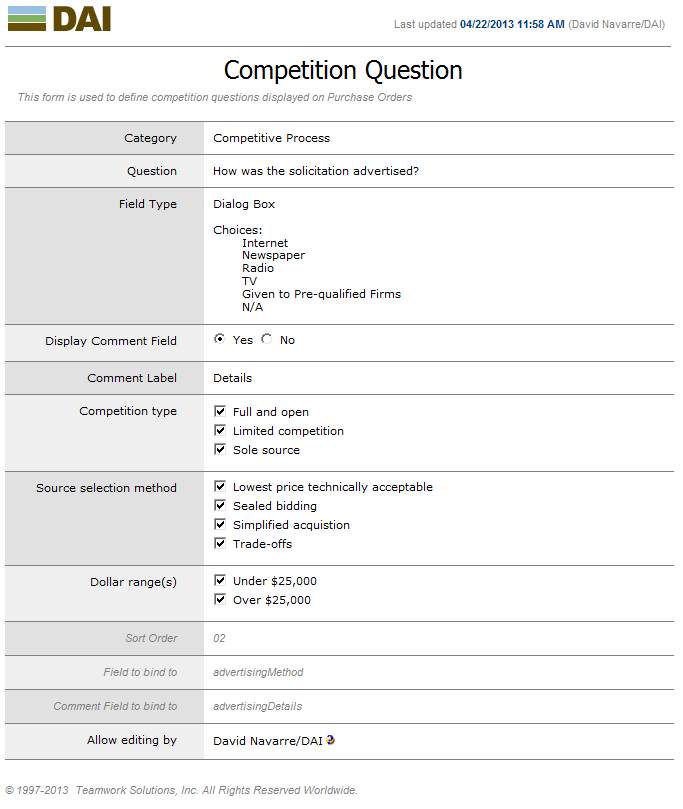
The Question FormCompetition Question Form

I created a relatively simple Notes form, based on the ones supplied to us for keywords by Teamwork Solutions. The layout is clean and very readable, plus re-using it allows more consistency within our application. A number of the fields are used to determine when and where the question will display (Category, Competition type, Source selection method and Dollar ranges). The checkbox values are derived from keyword documents, to allow maximum flexibility. I’m allowing five field types for answers: Yes/No, Dialog Box, Text Box, Date and Date Range. I had tried Rich Text, but was having problems with losing the handle to the document when saving, and since it wasn’t really required in this implementation, dropped that for later review. Sometimes, the question has a related question to extract more details, so I allowed two questions to be placed on one question document to ensure they display together. Down at the bottom, I’ve got the fields to which the answer fields will be bound on the Notes document. One hazard to allowing the field to be named in this configuration document is that there might be duplicate use of a field name, by the risk level strikes me as low.

Setting up the Repeat

The way that I started to understand repeats was actually when I set up jQuery mobile access to some data after viewing Richard Sharpe’s webinar for TLCC on Building Your First Mobile Application Using XPages I was able to take the knowledge I acquired doing that and use it to link from one Requisition to many Purchase Orders as demonstrated on this blog.

The repeat itself is not that interesting, but, one of the technical tricks in the setup is. As I’ve started to learn XPages, I’ve gotten comfortable with variables stored in applicationScope (available to everyone), sessionScope (available throughout the current user’s session) and viewScope (available on the current page), but had no idea when one would ever use requestScope variables. It turns out that they can be very useful to us here, though we’re going to access them using a dataContext rather than labelling them as requestScope variables.

Since I want to take a value from each Question document to determine the field to bind to on the Purchase Order document, the syntax and re-use will be far easier if I can establish a variable for that field name used within each row of the repeat. This way, we can use Expression Language to refer to the field on the Purchase Order document, binding to it dynamically.

<xp:repeat id="repeat2" rows="30" var="rowData" style="width:700px" value="#{competitionQuestionView}">
    <xp:panel>
        <xp:this.dataContexts>
            <xp:dataContext var="fieldName">
                <xp:this.value><![CDATA[#{javascript:rowData.getColumnValue ("FieldName");}]]></xp:this.value>
            </xp:dataContext>
        </xp:this.dataContexts>
        <--- insert code here --->
    </xp:panel>
</xp:repeat>

First, we want to display our question, with the layout handled by a table. We just grab the column value and display it.

<xp:table>
    <xp:tr>
       <xp:td style="width:200.0px;">
          <xp:label id="label1">
             <xp:this.value><![CDATA[#{javascript:rowData.getColumnValue("Question");}]]></xp:this.value>
          </xp:label>
       </xp:td>

Then, in the right-hand cell, we have the various possible answer fields. Note that since only one is rendered (the rendering formulas being mutually exclusive), it doesn’t matter that we bind to the field multiple times, since only one binding actually appears on the page. Tim Tripcony guided me to this solution in his answer on Stack Overflow. By using array syntax, we bind to the field on the poDoc using the value of our requestScope variable, fieldName. Remember, as a requestScope variable, it is only “alive” for the duration of this data retrieval to create the field binding. The binding formula ends up being very simple: #{poDoc[fieldName]}

Here’s a portion of the answer fields to give you the flavor…

<xp:td>
   <xp:inputText id="inputText1" style="padding-top:2px;width:400px">
      <xp:this.rendered><![CDATA[#{javascript:rowData.getColumnValue("FieldType") == "Text Box"; }]]></xp:this.rendered>
      <xp:this.value><![CDATA[#{poDoc[fieldName]}]]></xp:this.value>
   </xp:inputText>
   <xp:comboBox id="comboBox1" style="padding-top:2px;">
      <xp:this.rendered><![CDATA[#{javascript:rowData.getColumnValue("FieldType") == "Dialog Box"; }]]></xp:this.rendered>
      <xp:selectItems>
         <xp:this.value><![CDATA[#{javascript:rowData.getColumnValue("DialogChoices")}]]></xp:this.value>
      </xp:selectItems>
      <xp:this.value><![CDATA[#{poDoc[fieldName]}]]></xp:this.value>
   </xp:comboBox>
   <xp:inputText id="inputText2" style="padding-top:2px;text-align:left">
      <xp:this.rendered><![CDATA[#{javascript:rowData.getColumnValue("FieldType") == "Date"; }]]></xp:this.rendered>
      <xp:dateTimeHelper id="dateTimeHelper1"></xp:dateTimeHelper>
      <xp:this.converter>
         <xp:convertDateTime type="date"></xp:convertDateTime>
      </xp:this.converter>
      <xp:this.value><![CDATA[#{poDoc[fieldName]}]]></xp:this.value>
   </xp:inputText>
   <xp:radioGroup id="radioGroup1" style="padding-top:2px;width:86.0px">
      <xp:this.rendered><![CDATA[#{javascript:rowData.getColumnValue("FieldType") == "Yes/No"; }]]></xp:this.rendered>
      <xp:selectItem itemLabel="Yes" itemValue="Yes"></xp:selectItem>
      <xp:selectItem itemLabel="No" itemValue="No"></xp:selectItem>
      <xp:this.value><![CDATA[#{poDoc[fieldName]}]]></xp:this.value>
   </xp:radioGroup>
</xp:td>

Since my Question document also allows for the addition of a comment question after the non-TextBox answers, I have another line on the XPage to display those (Note that the dataContext for the commentFieldName requestScope variable has to be added to that panel inside the repeat control as well).

<xp:tr id="commentRow">
   <xp:this.rendered><![CDATA[#{javascript:rowData.getColumnValue("DisplayComment") == "Yes"; }]]></xp:this.rendered>
   <xp:td style="border-bottom:grey solid 0px;padding-top:2px;">
      <xp:label id="label3">
         <xp:this.value><![CDATA[#{javascript:rowData.getColumnValue("CommentLabel");}]]></xp:this.value>
      </xp:label>
   </xp:td>
   <xp:td id="commentCell" style="border-bottom:grey solid 0px;padding-top:2px;">
      <xp:inputText id="inputText3">
         <xp:this.value><![CDATA[#{poDoc[commentFieldName]}]]></xp:this.value>
      </xp:inputText>
   </xp:td>
</xp:tr>

In my next blog post, we’ll look at how we filtered the view data source in order to only display the questions we want on a particular purchase order.

If you don’t already look at XPages questions on Stack Overflow, you really ought to, and if you haven’t been keeping up with TLCC’s webinars, check out the series.

Categories: Server-Side Javascript, Xpages | Tags: , , , , , , , | 1 Comment

Creating one-to-many linking in Xpages

As I noted in my prior post, our new XPages application will need links from Requisitions to all Purchase Orders that are created from that Requisition. Now, in regular old Notes, I’d handle this just by plopping down a single-category embedded view, using the Requisition’s ID to find just the right Purchase Orders. Since embedded views already allow you to open the document underneath, my work would be done.

Fortunately, having found that Server Side Javascript is not frightfully different from LotusScript. You already have the basic understanding of the document object model from doing LotusScript, so it’s just a matter of figuring out the syntax, right?

Since I want to display a set of links to the associated Purchase Orders, I decided the cleanest way to do that was using a Repeat Control. Unfortunately, knowing the tool I needed didn’t resolve the problem by itself.

First, I had to build the values that would go into my Repeat Control. I thought about binding the view here, but our data doesn’t reside in the same database as the XPage designs. That means I’d have to compute which database I needed and, so far, that felt beyond my talents. Fortunately, the wonderful folks over at Teamwork Solutions provided us with a quick way to get a handle to the database, a getDb function. So, rather than trying to figure out how to squeeze that into a binding, I stuck to my LotusScript roots and got a NotesDocumentCollection from the view.

	<xp:this.value><![CDATA[#{javascript:
 		var db:NotesDatabase = getDb("tamisDb");
 		var poView = db.getView("PObyProcReqDocID");
 		var docCollection = poView.getAllDocumentsByKey(getComponent("docID1").getValue());
 		return docCollection;}]]>
 	</xp:this.value>

So, then, in my repeat, I can just refer to each document, pulling the values I want.

I always try to give my objects names that identify them clearly. My very first paid programming assignment was when I was pursuing my degree in Political Science, studying the Soviet Union. I worked at the National Superconducting Cyclotron Lab. It was a great place to work. Now, they don’t normally hire social studies majors to write code, but I hired in as a receptionist, then started working for the guys in Operations, walking around recording numbers on dials and checking on things. My boss knew I’d been a computer science major, so he guided me into re-writing their help document database. Every module in the database was named after a woman in his life. They were suitable names for him, because he knew the woman and the module names fit their personalities. I didn’t and I knew the next guy wouldn’t either, so I gave them all nice, functional names.

Why do I digress? Well, XPages is so eager to write code for you, that it assigns object names with object type and a number. I think a lot of people leave it that way, but when I’m in there, I need to assign names that fit. Sadly, I always end up with rowData as the object name for my repeats. I don’t know if changing from that had doomed my early repeats or if it’s just superstitious, but I leave it as rowData.

So, back to the completed code. Our ‘value’ section is there, identifying the NotesDocumentCollection we need, of all Purchase Orders documents that belong to the Requisition. For each one, we establish a link, labelling it by grabbing a field value, then using a Simple Action to open the pro_purchaseOrder XPage that displays Purchase Orders and using the UNID from the document selected as our rowData.

	<xp:repeat id="purchaseOrderLinkRepeat" rows="30" var="rowData" repeatControls="false" removeRepeat="true">
		<xp:this.value><![CDATA[#{javascript:
			var db:NotesDatabase = getDb("tamisDb");
			var poView = db.getView("PObyProcReqDocID")
			var docCollection = poView.getAllDocumentsByKey(getComponent("docID1").getValue());
			return docCollection;}]]>
		</xp:this.value>
		<xp:link id="poLink">
			<xp:this.text><![CDATA[#{javascript:"Purchase record: " + rowData.getItemValueString("TSWFNumber");}]]>
			</xp:this.text>
			<xp:eventHandler event="onclick" submit="true" refreshMode="complete">
				<xp:this.action>
					<xp:openPage name="/pro_purchaseOrder.xsp" target="openDocument"
						documentId="#{javascript:rowData.getUniversalID();}">
					</xp:openPage>
				</xp:this.action>
			</xp:eventHandler>
		</xp:link>
	</xp:repeat>

Honestly, that little slice of code took me several days to get my head around. I wasn’t staring at the screen the whole time, but the stops-and-starts of trying one approach and then another were tremendous. Those hurdles truly point out that a seasoned developer might well accomplish in an hour what it takes a new developer (or one new to the language) an entire week to do. Now that I have it under my belt, my team and I will be reusing this all over the place. I hope you can as well.

Categories: Server-Side Javascript | Tags: , , , , | 1 Comment

Creating a one-to-one linking in XPages

In our current project, we create Requisitions with one XPage and then create Purchase Orders with another. Each Requisition may result in many Purchase Orders, but a Purchase Order can only contain line items from a single Requisition. Naturally, the customer wants to be able to move seamlessly from the Requisition to any of the corresponding Purchase Orders and vice-versa.

I wasn’t sure how I’d do this in XPages, but knew I could do it for Notes users without a lot of coding and I could even make it look like web link.

One-to-One In Notes

In regular old Notes, this was very simple. On the Purchase Order form, where I wanted my link I typed Open Procurement Request, then highlighted it and clicked from the top-line menu, Create – Hotspot – Action Hotspot. I made two formatting changes (underline and deselecting the border around the hotspot) 1 and switched the action to run LotusScript. Nice, simple code makes that hotspot open the Requisition:

Sub Click(Source As Button)
	Dim session As New NotesSession
	Dim ws As New NotesUIWorkspace
	Dim thisdb As NotesDatabase
	Dim view As NotesView
	Dim uidoc As NotesUIDocument
	Dim thisdoc As NotesDocument
	Dim reqdoc As NotesDocument
	Dim luvalue As Variant

	Set uidoc = ws.CurrentDocument
	Set thisdoc = uidoc.Document
	luvalue = thisdoc.GetItemValue ( "ProcReqDocID" )

	Set thisdb = session.CurrentDatabase
	Set view = thisdb.GetView ( "LUProcByDocID" )
	Set reqdoc = view.GetDocumentByKey ( luvalue(0) )

	Print luvalue (0)
	If Not reqdoc Is Nothing Then
		Call ws.editDocument ( False, reqdoc )
	End If

End Sub

One-to-One In XPages

Having done it in Notes, I had some guidelines for how I wanted to do it in XPages, rather than just shooting in the dark. I also added display of the requisition number, which turned out to take a few lines of code as well.

	<xp:link escape="true" id="requisitionLink" target="_blank">
		<xp:this.rendered><![CDATA[#{javascript:poDoc.getItemValueString("ProcReqDocID") != "";}]]>
		</xp:this.rendered>
		<xp:this.text><![CDATA[#{javascript:
			var reqID = poDoc.getItemValueString("ProcReqDocID");
			var db:NotesDatabase = getDb("tamisDb");
			var reqView:NotesView = db.getView("LUProcByDocID");
			var reqDoc:NotesDocument = reqView.getDocumentByKey(reqID);
			var reqNumber = reqDoc.getItemValueString("TSWFNumber");
			return "Requisition: " + reqNumber; }]]>
		</xp:this.text>
		<xp:eventHandler event="onclick" submit="true" refreshMode="complete">
			<xp:this.action>
				<xp:openPage name="/pro_procurementRequest.xsp" target="openDocument">
					<xp:this.documentId><![CDATA[#{javascript:
						var reqID = poDoc.getItemValueString("ProcReqDocID");;
						var db:NotesDatabase = getDb("tamisDb");
						var reqView:NotesView = db.getView("LUProcByDocID");
						var reqDoc:NotesDocument = reqView.getDocumentByKey(reqID);
						return reqDoc.getUniversalID();}]]>
					</xp:this.documentId>
				</xp:openPage>
			</xp:this.action>
		</xp:eventHandler>
	</xp:link>

While this was somewhat intimidating, it ended up being not that hard. I will admit that it did take me a whole day to figure out, but it gave me the courage to try tackling linking in the opposite direction, our one-to-many link. For that, I had to expand my recently gained knowledge of repeats. More on that later.

My recent knowledge gain for repeats is thanks to TeamStudio’s webinar on mobile applications. Go figure. As I implement the mobile application that the webinar guided me through building, I’ll blog about that as well. For now, go check out the video.

1) Does anyone use those borders around the hotspot anymore? Since it looks so hideously and is therefor unusable shouldn’t it no longer be the default? Shouldn’t it instead default to underlined?

Categories: Server-Side Javascript | Tags: , , | 1 Comment

Create a free website or blog at WordPress.com.